Universal Clicker is a professional automation app for websites on iPhone, iPad and Android. It is an auto clicker, an auto tapper, an auto scroller, an auto refresher and a macro recorder in one app. Whatever you do by hand on a website becomes a step: a tap, a double tap, a swipe, a scroll, typing, Enter, Back or Reload. Steps make up an automation the app plays back for you, as often as you need.
It isn't made for one job. Ten kinds of steps combine freely: put steps inside a repeat, a repeat inside another, and an “Only if…” check anywhere, up to 10 levels deep. Run an automation once, up to 100 times in a row or until you stop it, at any speed from 0.5× to 5×. On the Business plan there are no caps on automations, runs or steps.
There are four ways to build, and you can mix them: record a task once, describe it to the AI, start from a template or add the steps yourself. However an automation starts, you can open it later and fix or add any step by hand, or keep improving it in the AI chat. Everything happens in the app's own browser on your phone or tablet. You need no computer, no code, no root, no jailbreak and no Accessibility permission.
Step by step
From install to the first run
1
Install the app and say what you want to automate
Universal Clicker is on the App Store for iPhone and iPad (iOS 15.1 or later) and on Google Play for Android phones and tablets (Android 7.0 or later). You don't need an account: recording, runs and the AI all work without signing in.
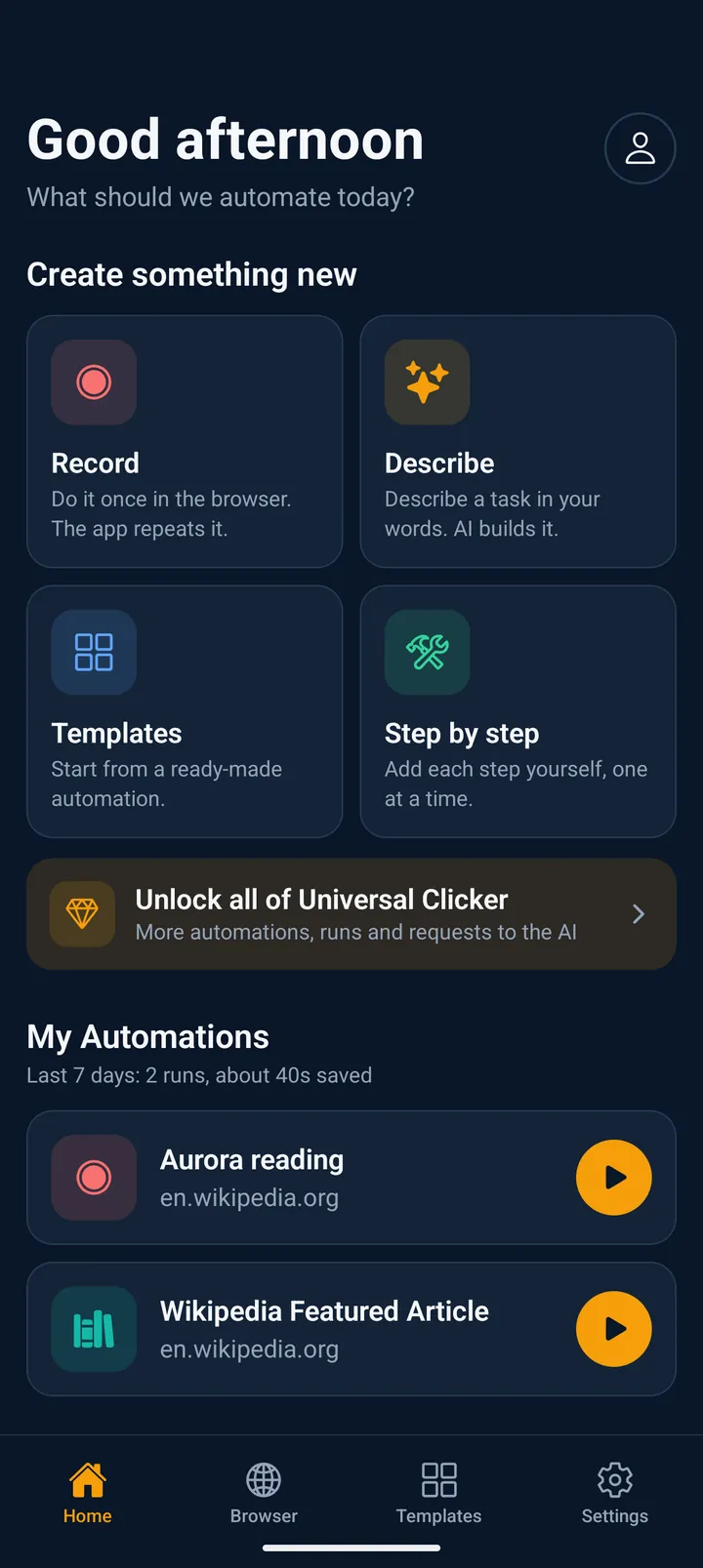
The first time you open the app, it asks one question: what do you want to automate? Answer in your own words. The AI opens the website, builds the steps and tests them while you watch, so your first automation is ready in a minute or two.
Then the app shows its plans. New customers can try Pro free for 3 days where the store offers it, and the app shows the price in your currency before you pay.
Scan with your phone's camera to open Universal Clicker.
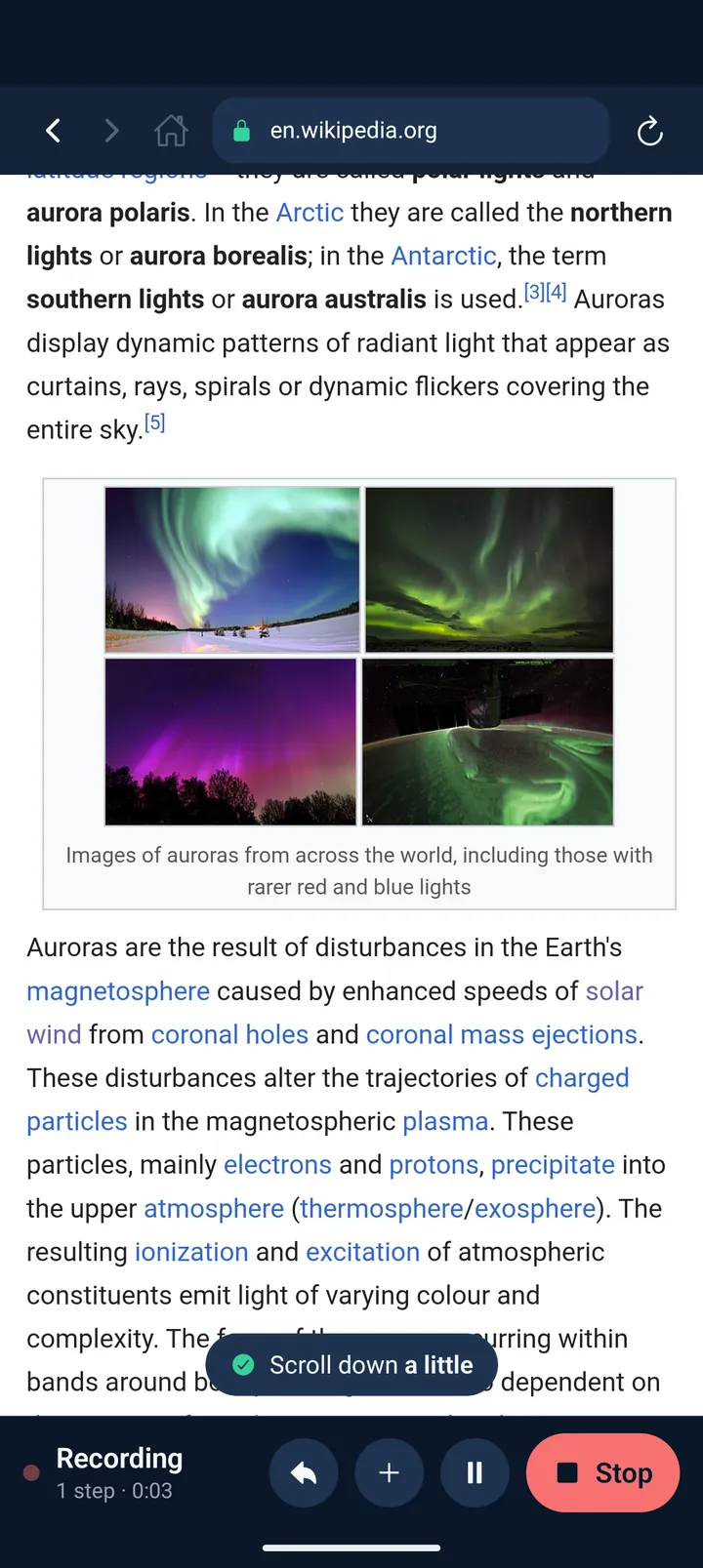
Open the Browser tab and go to the website. Type an address or a search, or pick one of your recent sites or a suggested place to start. Press Record and do the task the way you always do. The app saves each tap, swipe, scroll and piece of typed text as a step and shows it as a short sentence, like “Tap Search”.
The toolbar under the page counts the steps and the time. Undo removes the last step. Pause lets you move around without recording. Insert action adds a 1- or 3-second wait, a scroll down or a page reload right where you are. Press Stop when you're done.
Each recorded tap keeps both its spot on the screen and the button or link it hit, so you can later choose how it finds its target. Password fields are never read.
Scan with your phone's camera to start recording in the app.
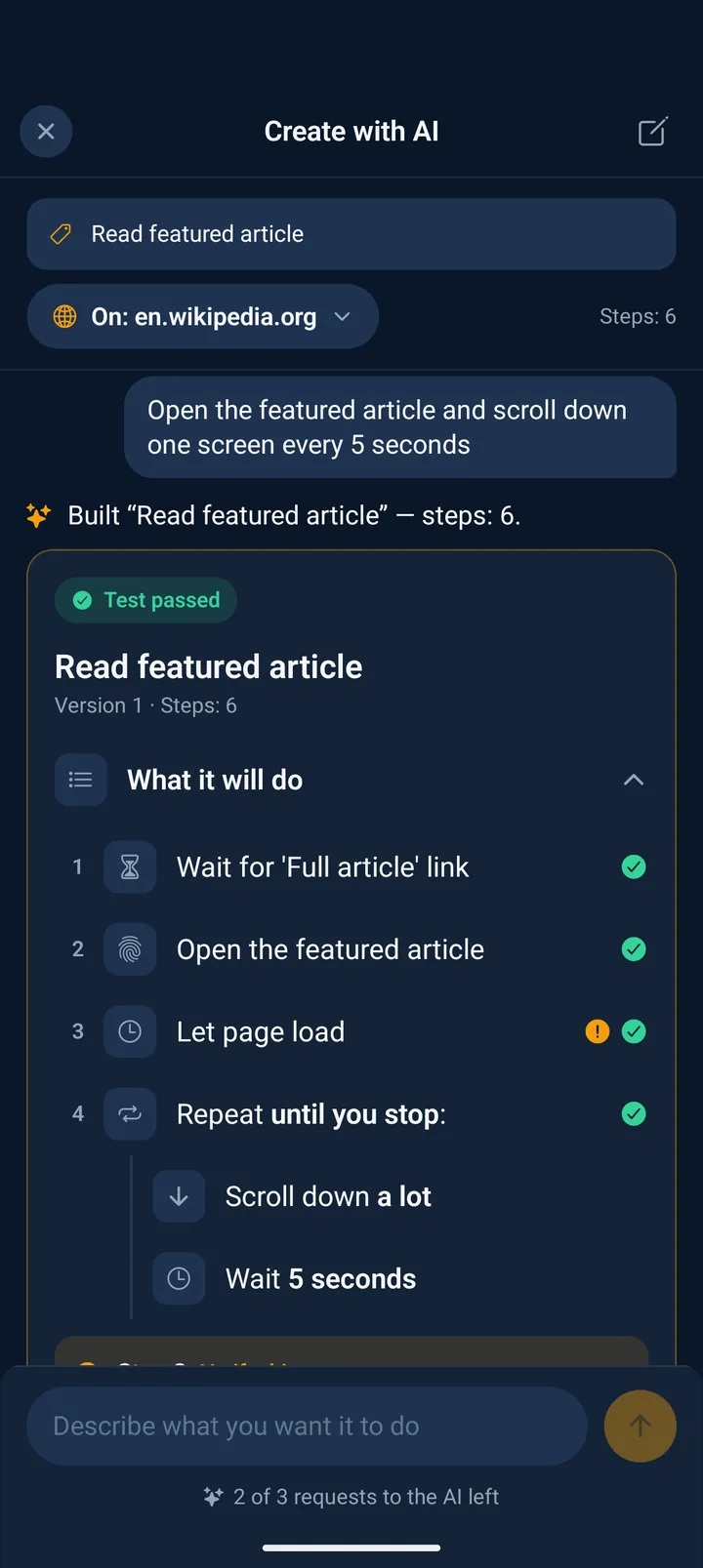
Tap Describe on Home and say what you need, for example “open the first article, then scroll down every 5 seconds”. The AI opens the website, reads the page, picks the buttons and links to use and builds the steps.
Then it tests them on the website by itself. If a step doesn't work, it fixes the steps and tests again, up to three times, without using your requests to the AI. Each answer is a version: Show steps lists what it will do, Test runs it again and Save adds it to My automations.
Building takes a minute or two. You can switch to another app meanwhile: the AI keeps working and sends one notification when your automation is ready.
Scan with your phone's camera to describe a task to the AI in the app.
The Templates tab holds automations other people shared, with search, categories and featured picks. Each template lists its steps as sentences before you install it, so you know exactly what it will do.
Tap Use this template: it is added to My automations and starts right away. From then on it's yours. Change any step, how many times it runs or its speed, like any automation you made yourself.
Scan with your phone's camera to open the Templates tab in the app.
Tap Step by step on Home. Name the automation and choose where it runs: a website it opens first, or whatever page is open when you press Run. Then tap Add step and pick from ten kinds of steps: Tap something, Type text, Scroll, Wait, Go back or reload, Wait until something appears, Swipe, Repeat steps, Only if… and Repeat on each touch.
Each step opens its own editor. To choose what to tap, drag the circle onto the button on the real page. Waits have quick picks and an exact amount. A repeat counts up, or runs until you press Stop. After saving a repeat or an “Only if…”, add the steps that go inside it.
A step's ⋯ moves it up or down, duplicates it or deletes it. Experts can open Code view under More options to see and edit the steps as code. Save & test saves the automation and runs it once to check it.
Scan with your phone's camera to add steps yourself in the app.
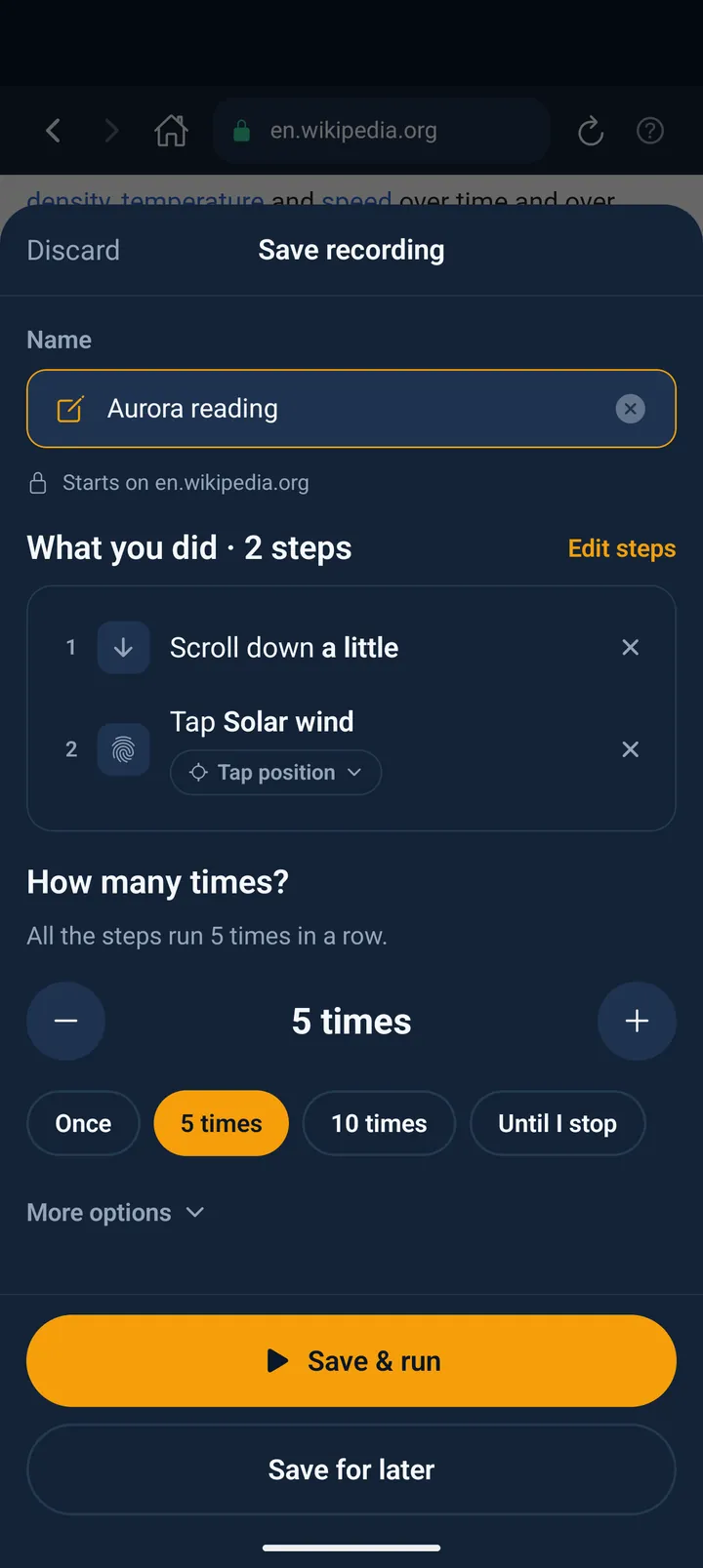
After a recording, Save recording shows the name and every step as a sentence. Remove a step you didn't mean to record, and restore it if you change your mind. Switch how a tap finds its target, and choose how many times the automation runs.
Save & run starts it at once on a freshly loaded page; Save for later keeps it in My automations. Under More options you can make it run on whatever page is open instead of the website you recorded on.
The AI's versions work the same way: Show steps, then Test or Save. Nothing is saved until you press Save.
7
Run it as many times as you need
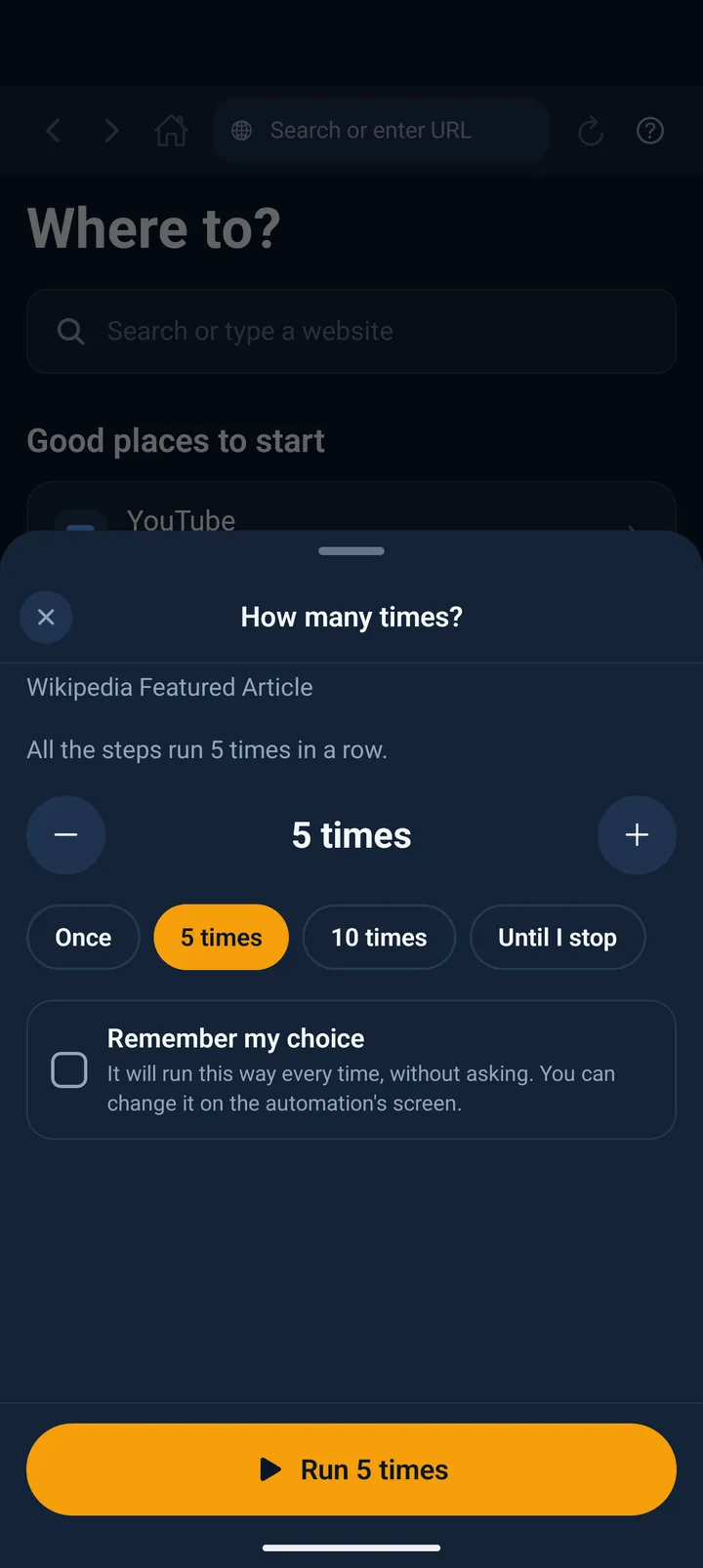
Open the automation from Home and press Run. The first time, it asks “How many times?”. Count with − and + (hold to count faster), or pick 1, 5, 10 or until you stop. Tick “Remember my choice” and from then on Run just plays. The button says how it will run, like “Run 5 times”.
Each automation has its own speed. On its screen choose 0.5×, normal, 2× or 3×. While it runs, the speed button goes up to 5×. Waits follow the speed too, so 2× really is twice as fast.
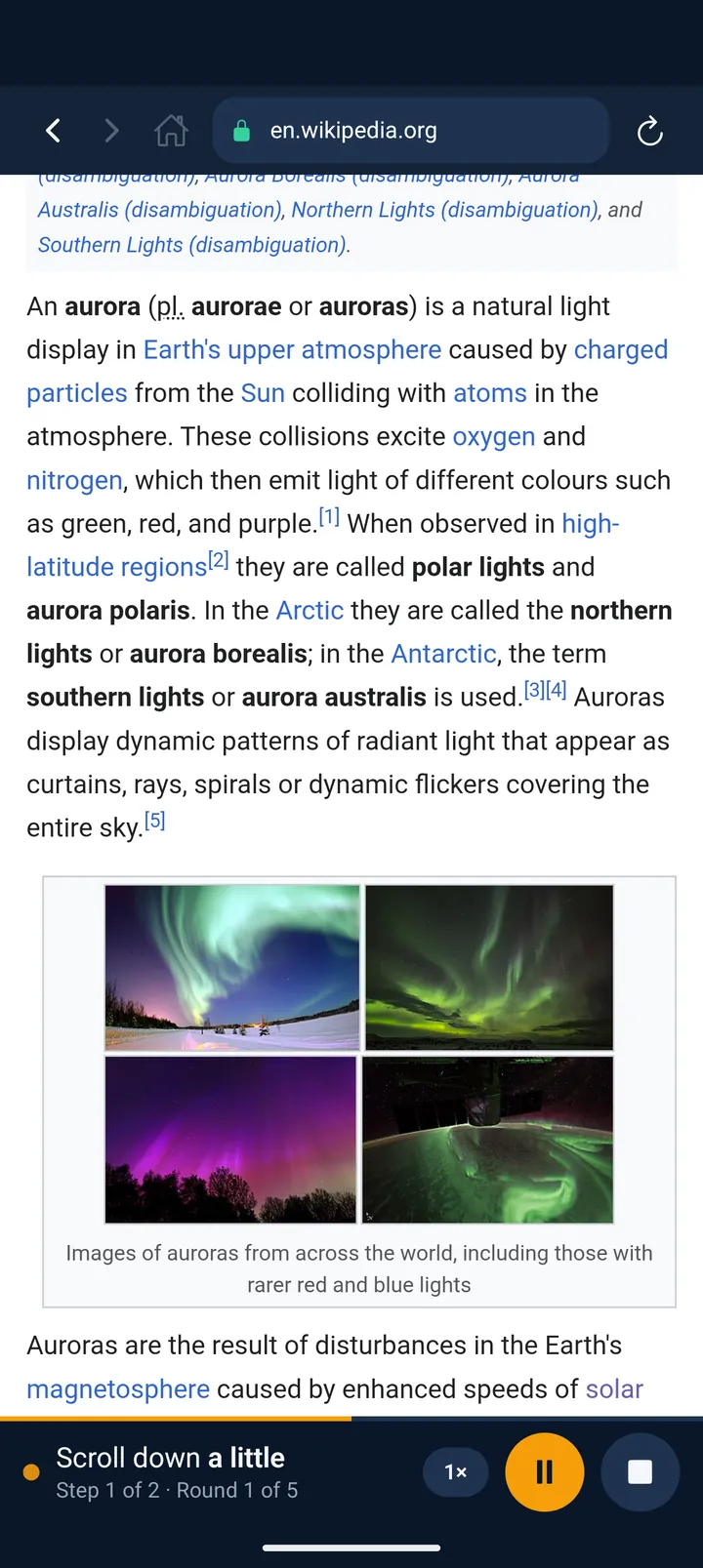
While it runs, the toolbar under the page says in plain words what it's doing, like “Step 2 of 3 · 18s left”, and which round it's on. Pause and Stop are always there. Test runs the automation once without counting it as one of your runs.
Scan with your phone's camera to open Universal Clicker.
Websites show cookie banners, sign-up nags and “open the app” cards. They hold a run only when they cover the step that comes next. Tap Continue or Stop, or wait: the run goes on by itself once the page is clear. Some of these cards the app closes by itself.
When a website asks you to sign in, you do it yourself in the app's browser, then the run goes on. The app never reads or types your passwords.
Keep the app on screen while it runs: phones pause apps in the background. If you switch away, the run pauses and picks up again when you come back, and a notification tells you where it stands. A run can last up to 5 minutes, except one set to repeat until you stop.
9
See what happened and fix what didn't work
After a run, a small tab at the top of the page says Done, Stopped or Didn't finish, with the count. Show what happened opens the log of every step and how it went. Run history, on the automation's ⋯, keeps your recent runs.
If a run stops with a problem, the app shows the step that failed and offers the fix. Switch how a tap finds its target and run it again. Choose Fix it with AI, and the AI repairs the step that failed. Try again in case the page was just slow, or Edit steps to change it yourself.
Last 7 days, on Home, in Settings and on each automation, counts the runs, the steps done for you and the time saved compared with doing it all by hand.
Scan with your phone's camera to open Universal Clicker.
Share to community, on the automation's ⋯, publishes it as a template for everyone. It is posted in English and shown to each person in their own language. Verified publishers get a blue check.
Sign in with a paid plan and your automations sync between your iPhone, iPad and Android devices.
Settings → Export automations saves them all to a backup file, and Import automations adds them back, on the same phone or another one.
Scan with your phone's camera to open the Templates tab in the app.
Every automation can be changed after it is made, whether you recorded it, built it step by step or let the AI build it.
Fix, move or remove a step
A website changed, or one step isn't quite right? Any automation can be changed after it is made: recorded, built by hand, made by the AI or installed from a template.
Open the automation from Home.
Tap ⋯ and choose Edit steps.
Tap the step to change it: what it taps (drag the circle onto the button), what it types or how long it waits.
Use the step's ⋯ to move it up or down, duplicate it or delete it.
Save, then press Test to try it without using up a run.
Add a delay between steps
When a page needs a moment to load, or you want time between taps, add a wait. Waits follow the run's speed: at 2×, a 4-second wait takes 2 seconds.
In Edit steps, tap Add step and choose Wait.
Pick a quick choice or set the exact number of seconds.
Put it in the right place with Move up or Move down.
To wait only as long as needed, choose Wait until something appears: the run carries on as soon as a button or some text shows up, and gives up after the time you set.
While recording, Insert action adds a 1- or 3-second wait right where you are.
Repeat without stopping
Repeat the whole automation, or only some of its steps. You can use both in the same automation.
To repeat everything, press Run and choose until you stop (∞) in How many times? It goes round after round, with no time limit, until you press Stop.
To repeat only some steps, add Repeat steps, put those steps inside it and set a count of up to 1,000, or make it repeat until you press Stop.
Put a Wait inside the repeat to give the page time between rounds.
Repeat steps, or do them only if something is there
Blocks let an automation decide for itself. Repeat steps runs the steps inside it again and again. Only if… runs them only when something is on the page, visible on the screen or showing certain text, and Otherwise holds the steps for when it isn't. Repeat on each touch runs its steps every time you touch the screen during a run.
Blocks go inside blocks, up to 10 levels deep. For example: a repeat that checks for a “Load more” button each round, taps it when it's there and waits a moment before the next round.
Scan with your phone's camera to add steps yourself in the app.
Continue a recorded or hand-built automation with the AI
You don't have to start over. The AI picks up any saved automation, whether you recorded it, built it step by step or installed it as a template, and changes it the way you describe.
Open the automation, tap ⋯ and choose Edit with AI. The chat starts from your saved steps.
Describe the change in plain words, like “wait 3 seconds after each tap” or “repeat this until I stop it”.
The AI changes the steps and tests them on the website. Each answer is a new version.
Go back to an earlier one with Use this version. Press Save changes when it's right; nothing is saved until then.
Scan with your phone's camera to open Universal Clicker.
The four ways to build work together. A common path: record the main task, add a wait and a repeat by hand, then ask the AI to add “if a pop-up appears, close it”. Or let the AI build it and fine-tune one tap yourself. It stays one automation you can keep changing.
Scan with your phone's camera to start recording in the app.
Every tap keeps its spot on the screen and the button it hit, and you choose how it plays. Tap position always taps the same spot. Page element finds that button or link wherever it moves. Smart looks for the button at that spot, or taps the spot if it isn't there. Settings → Recording method sets the one new taps use.
In Save recording or Edit steps, tap the chip under a tap step to switch it, or use the same way for all taps at once.
If a run fails at a tap, the app offers the switch and runs it again.
Run it on another page or website
An automation either opens its own website first or runs on whatever page is open when you press Run. Change it in Edit steps under Runs on.
If it runs on the page you're on and only the start page is open, the app asks where it should run and can remember the answer.
Change how many times and how fast
Each automation remembers its own count and speed. Change them any time on its screen, under How many times and Speed. Choose Ask before each run, and Run asks “How many times?” again every time.
Open your automations in the app
Each automation is on Home under My automations. Open one to change its steps, continue with the AI, or set how many times and how fast it runs.
Scan with your phone's camera to open Universal Clicker. Without the app, the phone shows where to get it: the App Store or Google Play.
A few steps go a long way once they sit inside repeats and checks. These are real automations, written the way the app shows them.
Read a long page hands-free
Two steps inside one repeat, until you stop.
1Repeat until you stop:
1Scroll down full page
2Wait 5 seconds
Search, then open each result
Typing, a wait for the page and a repeat that opens the next result each round.
1Type Running shoes and press Enter
2Wait until Results appears
3Repeat 5 times:
1Open the next Result
2Wait 10 seconds
3Go back
Watch a video feed
Watch each video for a while, then swipe to the next one.
1Repeat until you stop:
1Watch the video for 15 seconds
2Swipe up
Check a page for a change
Reload, wait, and act only when the page shows what you're waiting for.
1Repeat 30 times:
1Reload the page
2Wait 10 seconds
3If the page shows In stock:
1Tap Notify me
Steps
Every kind of step
An automation is a list of steps that run in order, and each one reads as a short sentence in the app. Any step can go inside a repeat or an “Only if…”, so ten kinds of steps make endless combinations.
Tap something
Taps a button, a link or any spot on the page; a recorded double tap stays a double tap. It finds its target by its spot on the screen, by the exact item wherever it moves, or both (Smart).
Type text
Types into a search box or a form, and can press Enter after it to search or send. Choose the box, or let it type into the first one on the page.
Scroll
Moves the page up or down by the amount you choose, from a little to a full screen at a time.
Swipe
Slides across the screen at the speed you choose, like in a photo gallery or a video feed.
Wait
Pauses for seconds or minutes. On a video, it can watch the video for that long.
Wait until something appears
Waits for a button, a link, a text box or anything else to show up, then carries on. It gives up after the time you set.
Go back or reload
Works like the browser's Back or Reload button.
Repeat steps
Runs the steps inside it a number of times, up to 1,000, or until you press Stop. A repeat can hold other repeats.
Only if…
Runs the steps inside it only when something is on the page, visible on the screen or showing certain text, with Otherwise for when it isn't.
Repeat on each touch
Runs the steps inside it every time you touch the screen during a run, as often as you like or up to a number of times.
For experts: Code view shows and edits the steps as code, and any target can be an exact CSS selector, like #search or .popup. Typing, swipes, taps on an exact item, Wait until something appears, Repeat steps and Only if… come with a paid plan.
Questions
How do I…?
How do I set up an auto clicker on iPhone, iPad or Android?
Install Universal Clicker and open a website in its browser. Press Record and do the task once, or tap Describe and tell the AI what to do. Then press Run and choose how many times. It needs no root, jailbreak or Accessibility permission, because it taps inside its own browser.
How do I add a delay between taps?
Open the automation, tap ⋯ → Edit steps → Add step → Wait, choose the seconds and move the wait between the two taps. While recording, Insert action adds a 1- or 3-second wait. To wait only as long as needed, use Wait until something appears.
How do I make an automation repeat until I stop it?
Press Run and choose until you stop (∞) in How many times?, or put the steps in a Repeat steps block set to repeat until you press Stop. A run that repeats until you stop has no time limit.
How do I auto refresh a web page on my phone?
Build an automation with Go back or reload set to Reload the page, then a Wait of as many seconds as you like, and run it until you stop. Add Only if… to tap something when the page shows what you're waiting for, such as a price, a free slot or a result.
How do I auto scroll a page on iPhone or Android?
Put a Scroll step and a Wait inside Repeat steps, or record yourself scrolling once, then run it until you stop. The speed, from 0.5× to 5×, changes how fast it goes.
How do I fix a step that stopped working?
When a run stops with a problem, the app shows the step that failed. It offers to switch how a tap finds its target, to fix it with the AI, to try again or to edit the steps. You can also open Edit steps at any time and change the step yourself.
Can I edit a recorded automation with the AI?
Yes. Open it, tap ⋯ → Edit with AI and describe the change. The AI starts from your saved steps, changes them, tests them and shows each try as a version. Nothing is saved until you press Save changes.
How can I see what the AI built?
Show steps on each version lists every step as a sentence, and Test runs it and says where it failed, if it did. After saving, Edit steps shows each step's settings, and Code view shows the exact steps as code.
Can it tap only when a button appears?
Yes. Only if… runs the steps inside it when something is on the page, visible on the screen or showing certain text. Wait until something appears holds the run until it shows up.
Can I combine recording, the AI and my own steps?
Yes. Record the main task, add steps by hand, then continue in the AI chat, or the other way round. It stays one automation you can keep changing.
How many steps can an automation have?
Up to 100 on Pro, 400 on Max and no limit on Business. Inside an automation, a repeat can run up to 1,000 rounds or until you stop, and blocks go up to 10 levels deep.
Can I use it for web games or to test my own website?
Yes, as long as it runs in a web page. Tap, swipe and wait in browser games, or walk through your own website's sign-up or checkout on a phone screen and see which step fails.
Get Universal Clicker
Install the app on your phone or tablet. Automations are made and run there; this website only explains them.